
 Get Chrome extension
How Finance Teams Fill Banking, Tax and KYC Forms with AI

Accountants, bookkeepers and finance ops teams spend a surprising share of the week inside other people's forms: bank onboarding portals, tax filing systems, KYC questionnaires, payment provider applications. The answers rarely change. Legal name, registration number, registered address, directors, tax ID. What changes is which portal is asking today.
This guide shows a workflow for filling financial forms from the data you already have, using FillWise, a Chrome extension we build. We will be specific about what it does, what it refuses to do, and which fields you should still verify digit by digit.
Why financial form work piles up
- Every bank has its own onboarding. Opening an account for a client or a new entity means the same company profile entered into yet another portal, in yet another order.
- KYC repeats across providers. Banks, payment systems and brokers each run their own know-your-customer questionnaire, and they largely ask for the same facts about the same people.
- Tax work is seasonal and concentrated. When deadlines arrive, the same client data goes into filing system after filing system in a short window, which is exactly when typos happen.
- The data lives in documents. Registration certificates, IDs, statements and invoices arrive as PDFs and scans. Someone reads each one and retypes what it says into a web form.
- Numbers punish small mistakes. A transposed digit in an account number, tax ID or IBAN does not look wrong on the screen. It surfaces later, as a rejection or a misdirected payment.
The workflow
- Open the form in Chrome: a banking portal, a tax filing system, a KYC questionnaire, a payment provider application.
- Open the FillWise side panel and give it the source data. Paste text in any format: the company profile from your records, rows copied from a spreadsheet, a client's email. You can also attach a photo, scan or PDF of a source document, such as a registration certificate, an ID page or an invoice.
- Click "Fill form". The AI reads the fields on the page, matches your data to them and fills what it can, including dropdowns and checkboxes.
- Review every field against the source, then submit.
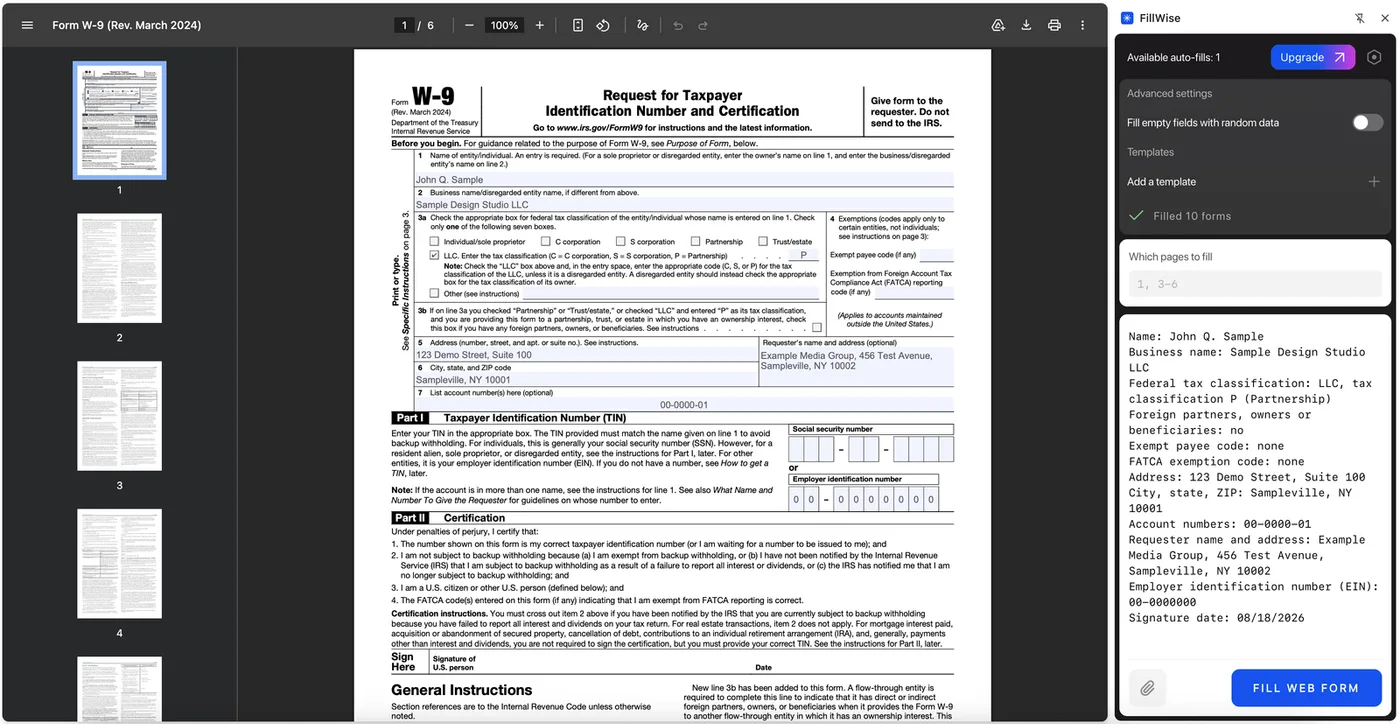
Attachments can be JPEG, PNG, WebP or PDF, up to 5 MB each. The AI reads the document and uses what it finds as source data, which saves the retyping step entirely when the "database" is a folder of client PDFs.
Getting data out of spreadsheets
An honest note, because finance data usually lives in Excel: you cannot attach an .xlsx file. What works instead is simpler than it sounds. Copy the relevant rows and paste them into the side panel as text, headers and all, or attach a screenshot of the table. The AI handles both fine. There is a separate guide on filling web forms from spreadsheet data with the details.
Company profiles you enter weekly
The same entity details go into nearly every form: legal name, registration number, address, directors, contact details. Save them once as a reusable template and stop pasting the same block every time. Templates are stored in your account and can be applied to any form.
Forms that arrive as PDFs
Bank mandate forms, account applications and plenty of tax paperwork come as fillable PDFs rather than web pages. FillWise fills those locally: the PDF is parsed inside your browser and is never uploaded, and text fields, checkboxes, radio groups and dropdowns are set through the PDF's real form fields. Flat scans have no fields, so the values are drawn onto the page for you to check, and forms that only open in Adobe Reader (XFA) are filled for checking in Reader. The PDF automation guide covers how to tell the difference.
What to check by hand
In financial paperwork the review step is not optional, so treat the autofill as a first pass:
- Verify every number digit by digit against the source: account numbers, IBANs, tax IDs, registration numbers, amounts.
- Fields that encode a decision stay yours: tax classifications, ownership percentages, declarations, anything the form asks you to certify.
- Check format rules the portal enforces, such as date formats or how the legal name must match the registry entry.
- If a value came from a scanned document, glance at the original once more. Reading a scan is exactly where a human would double-check a human.
Where the data goes
Financial data deserves precision here. For web forms, the list of fields from the page plus the source data you provided is sent securely to our server for AI processing and is not stored after the fill. For PDF forms, the document is parsed locally in your browser and only the field list and your data go out for matching. Templates you explicitly save are stored in your account. The privacy policy has the specifics.
Pricing
The free plan starts with 20 fills and then tops back up to 5 a week, with no card required, enough to put a real onboarding form through it and judge the result. Paid plans are listed on the pricing page.
FAQ
Does FillWise connect to QuickBooks, Xero or other accounting software? No. There are no direct integrations. The practical route is copy and paste: export or copy the record as text from your accounting system and paste it into the side panel.
Can it read a bank statement or invoice and use the numbers? Yes, as an attachment. Add the statement or invoice as a PDF or image (up to 5 MB) and the AI reads it as source data. Verify the extracted numbers against the original before submitting, as you would with any transcription.
Can I upload an Excel file? No. Paste the rows as text or attach a screenshot of the table instead. Both work, and the spreadsheet guide shows the workflow.
Is client data stored on your servers? Data sent for a fill is processed and not stored afterwards. What is stored is what you deliberately save: your account details and any templates you create.
Next time a bank or tax portal asks for the same company profile again, try it: install FillWise, paste the data or attach the document, and review the result. The free plan starts with 20 fills, no card required.